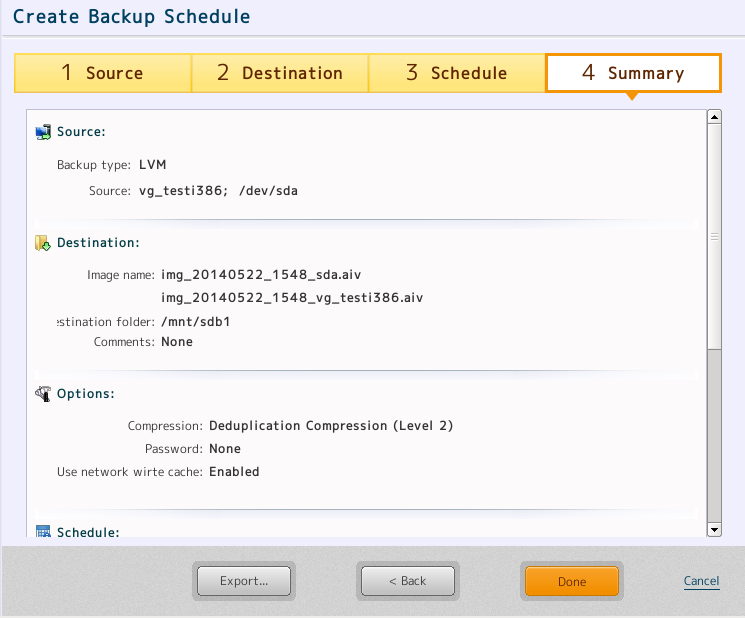
Review the settings configured for the backup schedule.
[Export] saves the settings to a specified location in text file format.
Review the settings. If a change to any setting is needed, click [< Back] to return to the specific settings page.
Once the settings are confirmed, click the [Done] button to start the backup task.
Select [Task] in [Dashboard] to monitor the progress of the backup task.
Or, you can monitor progress in the status panel.
Select [Task Log] in [Dashboard] to check the task log.
Note:
· When the [Temporary change tracking] option is selected, and if you create incremental backup schedule, the following warning message will be displayed.
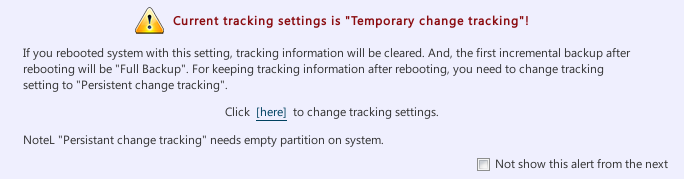
Click [Here] or select [Preference] – [Tracking] to change the setting for tracking option in [Tracking setting] dialog. For further details to change the tracking option, please refer here.
· Even if an incremental backup task is scheduled for a device, of which an entry is added only after installation of ActiveImage Protector, the incremental backup image is not created according to the schedule.
Execution of the incremental backup schedule as such will result in full backup image. To schedule a incremental backup task for a device, of which an entry is not added to "/etc/fstab" when ActiveImage Protector is installed, it is necessary to add the entry to "/etc/fstab", then install ActiveImage Protector.