Configure the settings for backup schedule and options.
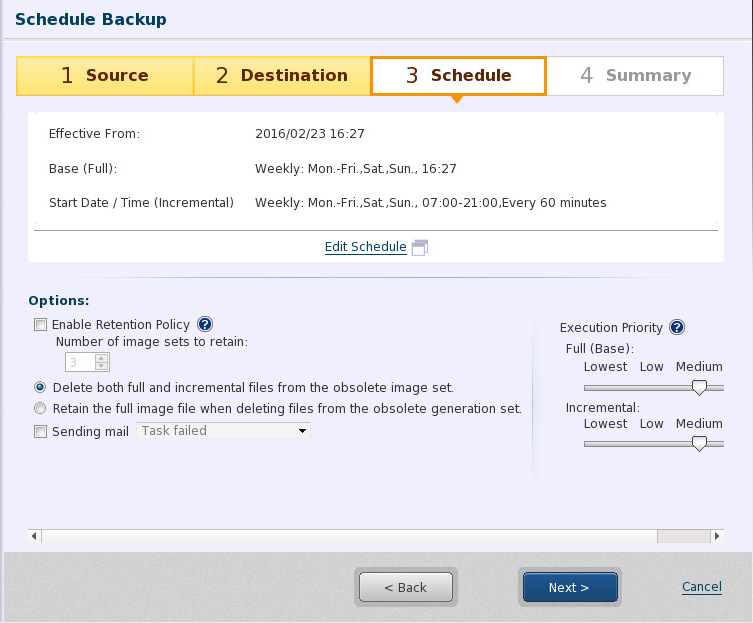
Backup wizard guides you or click on [Edit Schedule] button to display [Schedule Setting] page.
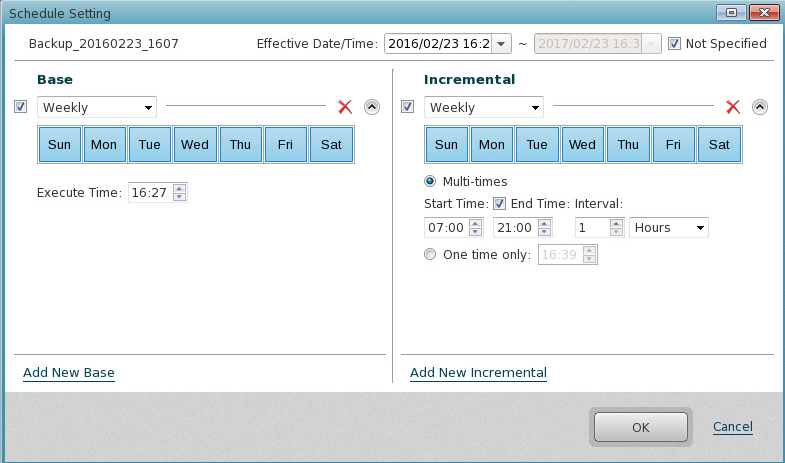
For both base and incremental backup tasks, a new trigger may be added, and an existing trigger may be deleted or disabled.
To add a new trigger, click on  or
or  .
.
To delete an existing trigger, click on  .
.
To disable an existing trigger, check off the checkbox.
Base Backup: Run at 21:00 at the end of every month.
Incremental Backup: Run every 60 minutes from 9:00 to 18:00 from Monday to Friday.
Incremental Backup: Run at 18:00 on Saturdays and Sundays only.
Base Backup:Run at 21:00 on the specified days.
Incremental Backup: Run every 60 minutes from 9:00 to 18:00 from Monday to Friday.
Select schedule type from the following for base and incremental images.
|
Type |
Description |
|
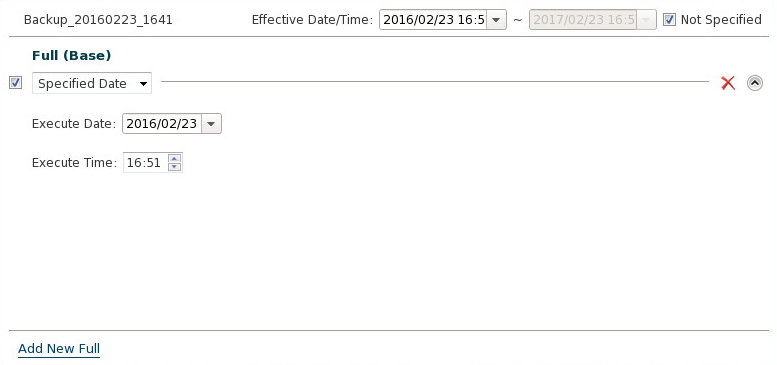
One Time |
Schedule a backup task to run one time only at specified time on a specified date.
|
|
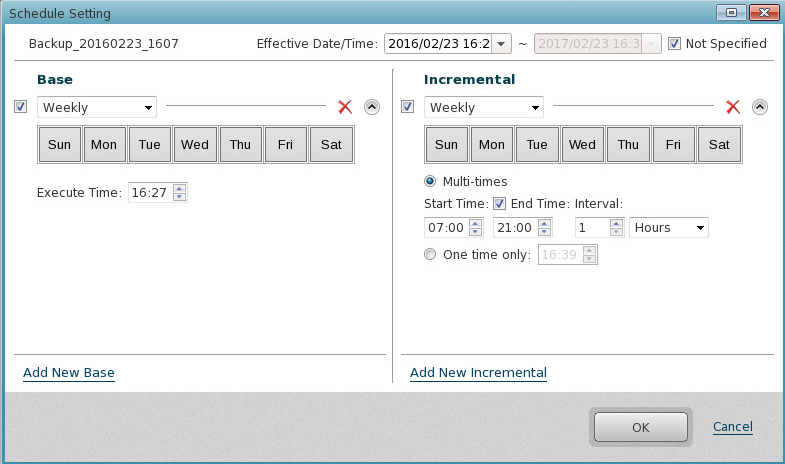
Weekly |
Schedule backup tasks to run at specified time on specified day(s) of a week.
Specify the date and time to run backup tasks on weekly basis. The following options may be selected for incremental backup tasks. [Regularly run at a specific interval]:Schedule backup tasks to run with specified time interval during specified time period on specified day(s) of a week. Clear the check box for [End Time] to run backup task until the same time of the following day. [One Time Only]: Schedule a backup task to run at specified time on specified day of a week. * If a schedule trigger is deleted for base backup task and there exist incremental backups only, the first backup task is executed to create base backup and the subsequently scheduled incremental backup tasks are executed by schedule trigger. |
|
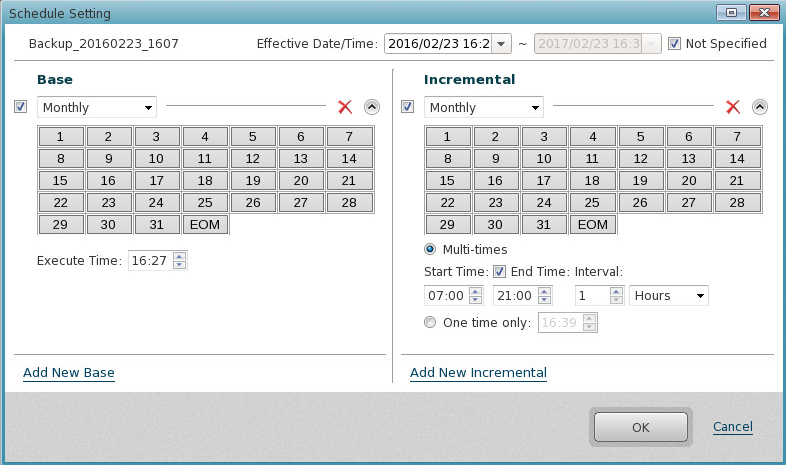
Monthly |
Schedule backup tasks to run at specified time on specified date on monthly basis.
Specify the date nad time to run backup tasks on monthly basis. The following options may be selected for incremental backup tasks. [Regularly run at a specific interval]:Schedule backup tasks to run with specified time interval during specified time period. Clear the check box for [End Time] to run backup task until the same time of the following day. [One Time Only]: Schedule a backup task to run at specified time on specified date(s) of a month. * If a schedule trigger is deleted for base backup task and there exist incremental backups only, the first backup task is executed to create base backup and the subsequently scheduled incremental backup tasks are executed by schedule trigger. |
If [Auto run missed schedule task] is enabled as an option, if there are tasks skipped in the system shutdown state, it can be executed after system startup.
Additional settings for backup schedule may be specified.
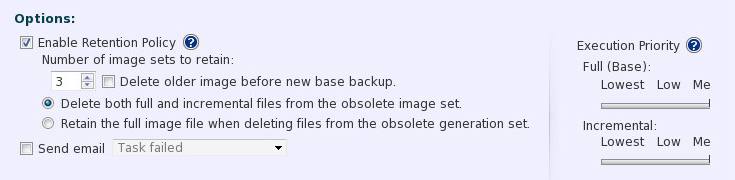
When retention policy is enabled, the only limited number of backup image generation sets can be saved. "Generation set" represents a set of base and the incremental or differential images associated to that base. When the number of backup image sets reaches the preset limitation and another backup image is created, the oldest backup image set is deleted. Please select one of the following options.
|
Option |
Description |
|
Delete both the full and incremental. |
Both full and incremental (differential) images in the oldest generation set are deleted according to the retention policy. |
|
Delete only the incremental |
Select this option to delete only incremental (differential) backup images in the oldest generation set according to the retention policy, but keep full backup images.
* When a backup image is mounted as writable and the backup image is unmounted, the changes made in the backup image will be automatically saved as a differential backup image file. |
* Ensure there is sufficient disk space available in the destination storage where the predefined number of backup image sets are saved according to the retention policy.
If storage space runs out, execution of the backup task will fail.
The backup image will be deleted immediately after exceeding the limit imposed by the retention policy.
When an existing backup task is edited, the old backup image shall not be deleted according to the retention policy. The old backup image as such needs to be manually deleted.
With [Delete older image before new base backup] option enabled, the most obsolete generation is deleted before creating a new image set.
[E-Mail Notification] option may be enabled for backup schedules respectively and you can select [E-Mail Notification] trigger, i.e., [Unsuccessful backup task], [Successful backup task] and [End of backup task].
Select a level of task execution priority. Task execution priority level may be selected for full and incremental backups respectively.
Upon completing the configuration settings for the backup schedule and options, click [Next].