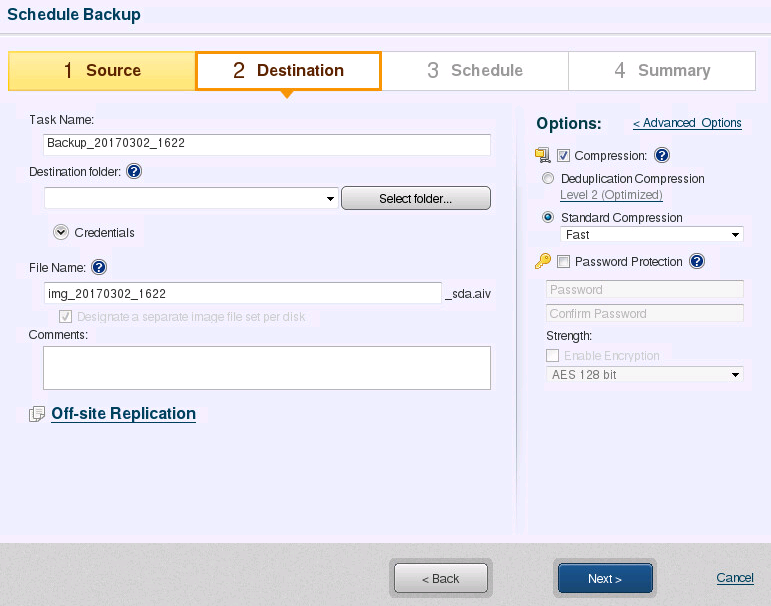
Specify the location to save backup image files.
Please specify the task name for backup execution.
* In Red Hat Enterprise Linux 7.x or CentOS 7.x environment, GUI does not support Japanese to specify the task name.
Specify the location to save backup image files.
Enter the full path to the destination or browse to select it in Explorer ([Select Remote Folder] dialog).
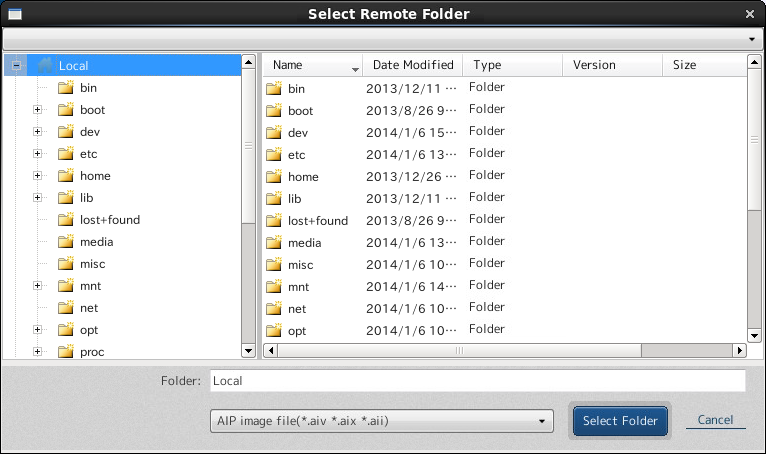
For a more detailed explanation, please refer here.
Note:
To browse a network shared folder (samba), for example by using "fstab", etc., which is not mounted to host, make sure Windows Firewall exception settings are configured to open the following port.
· UDP: 137
Specify the backup image file name. The following option may be selected.
* In Red Hat Enterprise Linux 7.x or CentOS 7.x environment, GUI does not support Japanese to specify the file name.

When the selected backup source spans across multiple disks, this option can be selected.
If this option is enabled, disk based image files are created.
When [Deduplication Compression] option is selected, it is highly recommended to disable the [Separate image file for each disk] option.
When [Separate image file for each disk] option is disabled, backup of the multiple disks are included into a single image file, an [md] is added to the end of the file name).
Enter a comment in the text box to provide a description of the created image.
* In Red Hat Enterprise Linux 7.x or CentOS 7.x environment, GUI does not support Japanese to specify the comment.
The Off-site Data Replication feature is provided to replicate backup image files to an off-site location. For further details, please refer here.
The use of the image compression feature enables you to reduce storage requirements. You can select one of the following two compression options.
| Option | Description |
| Deduplication Compression |
The more duplicate data, the more benefits Deduplication Compression provides. If multiple disks are connected to the system, it is recommended to include backups of multiple disks into one image. When the [Separate image file for each disk] option is disabled, all source disks are backed up into a single image file.
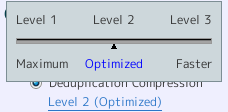
Select a deduplication level from the following: [Level 1] - Deduplication is performed at high level. This may increase process time but the image files will be more tightly compressed. [Level 2] - Select this level (default) to achieve the best balance between process time and compression performance. [Level 3]-The data in the image file will be compressed at low compression rate, and deduplication requires less processing time.
Temporary work folders used for Deduplication Compression can be changed from the dialog and in the [Advanced Options]. |
| Standard Compression Rate |
The backup image is compressed at an optimum compression rate. Select the compression rate level as follows: [Fast] - Backup processing time and required disk space are optimum. [High] - By selecting this option, execution of the backup job requires heavy system resource usage and increased processing time. |
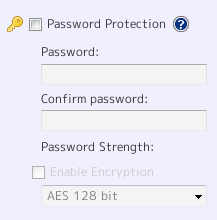
Image files can be password protected.
In order to maximize the safety of backup images, please set up the password.
To encrypt image files, enter password here.
Select the following algorithm for encryption.
[RC5] - RC5 256bit is used for encryption.
[AES (128 bit)] - AES 128bit is used for encryption.
[AES (256 bit)]- AES 256bit is used for encryption.
Post task processing option cannot be enabled for sheduled backups.
Additional settings for backup can be specified.
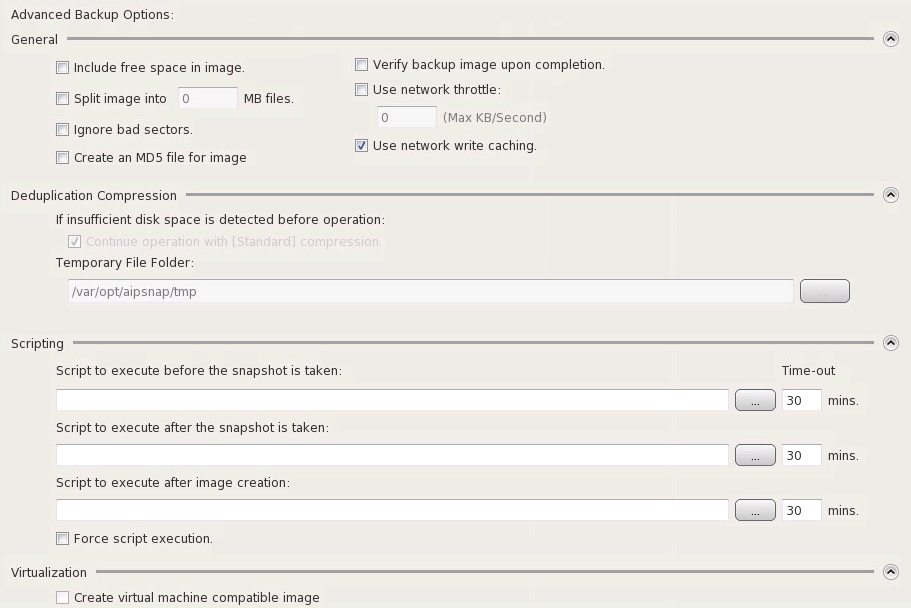
Click on [Advanced Option] to open the settings page and configure the advanced option settings.

Configure the settings for the advanced backup options.
| Option | Description |
|
Backup of all sectors is taken including the free space of the selected volume. |
|
|
Split image into xx MB files |
The created image is split into multiple files of specified size (MB). |
|
Ignore bad sectors |
By enabling this option, encountering unreadable sectors will not interrupt the backup task. |
|
Create MD5 file for image |
MD5 file is created for image file. |
|
Verify image after creation |
Backup image files are created, then verified. Processing time is increased for Verification. |
|
Use network throttle |
Define the maximum throughput in KB/second by using network throttle if destination drive is located on a network shared folder. |
|
Use network write caching |
When storing image files in network shared folder, cached data are used. |
Script files can be specified at the following three points in backup process.
To use a script file, the full-path file name must be specified in the respective text boxes.
* The script files specified to execute cannot require any user interaction.
|
Option |
Description |
|
Script to execute before the snapshot is taken |
Specify the script or batch file to run before the snapshot is taken. <Ex.> Execution of a pre-snapshot script file stops databases to place them into a state (paused) at which a backup can be performed. |
|
Script to execute after the snapshot is taken |
Specify the script or batch file to run after the snapshot is taken. <Ex.> For example, unpause and/or restart a database was paused executing a pre-snapshot script file can be placed back into production mode with the execution of a post-snapshot script file. |
|
Script to execute after image is created |
Specify the script or batch file to run after writing of the backup image. <Ex.> For example, this script file is executed to copy the created backup image file to offsite location. |
|
Force scripts run |
Every specified script file will be executed, even if an error occurred in backup operation. |
Specify whether ActiveImage Protector should continue backup with Deduplication function when there is no sufficient available space in the destination folder before operation starts.
| Option | Description |
| Continue operation without deduplication | Backup job will continue at the [Standard] compression rate. |
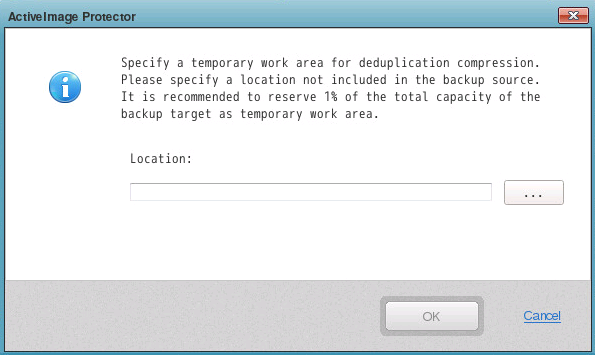
| Temporary File Folder | Specify the location of the temporary working folder for deduplication compression.
* USB connection HDD volume can also be specified. * It is recommended to reserve 1% of the total capacity of the backup target as temporary work area. |
After setting the location of the temporary work folder, click [OK].
Virtualization option may be specified.
| Option | Description |
| Create Virtual Machine Compatible Image |
If this option is selected, the created backup image may be restored to a virtual disk (Hyper-V, VMware, KVM) by providing the means for system bootup during the restore process. [PtoV_] is added at the beginning of the created file name. * This option does not support scheduled backup task. * This option supports CentOS / Red Hat Enterprise 5 / 7 environment only. * This option does not support cold backup. |
When the settings are completed for the destination and backup options, click [Next].