
Before selecting a shared folder as the destination drive for saving the backup image files, select [Site Configuration] to register the shared folder.
1. Specify the template/task name and the backup source.
Specify the backup template name.
Specify the task name deployed to the agents.
Select backup type and backup source. The specified backup source has to be located on the computer when deploying the template.
Select [Disk Layout] / [Volume Layout], click [Import Layout ...] for importing the layout of a specific managed computer and select the backup source.
* To select CSVFS volumes for the backup source, you need to import the volume layout, in which case you can select only one CSVFS volume for the backup source.
After completing the settings configuration, click [Next >].
2. Configure the destination and other settings.
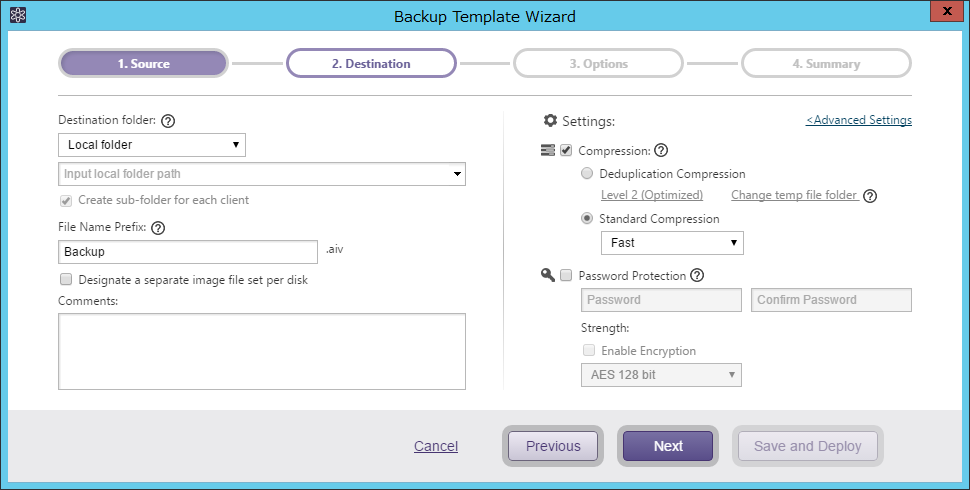
Configure the settings for the destination and backup image file.
|
Item |
Description |
|
Destination Folder |
Select a destination storage for saving the backup image files. A network shared folder may be selected as the destination after registering it by selecting [Site Configuration] - [Storage Devices], or select [Add new] to select an unregistered shared folder. |
|
Create sub-folder for each client |
Enable this option to create the sub-folders in the specified folder as the destinations for the respective clients. |
|
File Name Prefix |
Specify the backup image file name to create. |
|
Designate a separate image file set per disk |
Enable this option to create backup image files by disk. |
|
Comments |
Define comments for backup image files. |
|
Destination Isolation Option |
Select an option that disconnects access to backup image storage drives after backups complete. Upon completion of the backup task, the specified destination storage becomes inaccessible. |
Please configure the settings for backup task execution and for creating image files.
|
Item |
Description |
|
Compression |
Enabling the compression option reduces storage requirements by further compacting the backup image file. Select the desired type of compression. · Deduplication Compression: o Deduplication Compression level: Select one of the three levels of deduplication available. [Level 1] - Deduplication is performed at the highest level and may increase the overall backup processing time but achieves the most tightly compressed image file. [Level 2] - This preset level provides the best balance between process time and compression performance. (This is the default setting). [Level 3] - The image file will be generated at a lower compression rate and deduplication requires less backup processing time. o Temporary File Folder: Set the location for deduplication to process temporary files. * The maximum size of the temporary folder will be 2.5% of the used space of backup source. * It is recommended to set it on an SSD that delivers fast read and write speeds. · Standard Compression: Two levels of standard compression are available. [Fast] - Backup processing time and storage requirements are at an optimum. [High] - The backup task will place a higher demand on system resource usage and an increase in processing time but the result is a smaller backup image. |
|
Password Protection |
Password protect the backup image file by assigning a unique password. This ensures that password input is required for operation with the image file. There are three levels of encryption to choose from. [RC5] - An early encryption standard with a variable block size, key size and number of rounds. Selecting RC5 encryption provides a faster encryption processing speed. [AES 128 bit] & [AES 256 bit] - A stronger encryption method than RC5. Uses a fixed block size and a key size of 128 or 256 bits. |
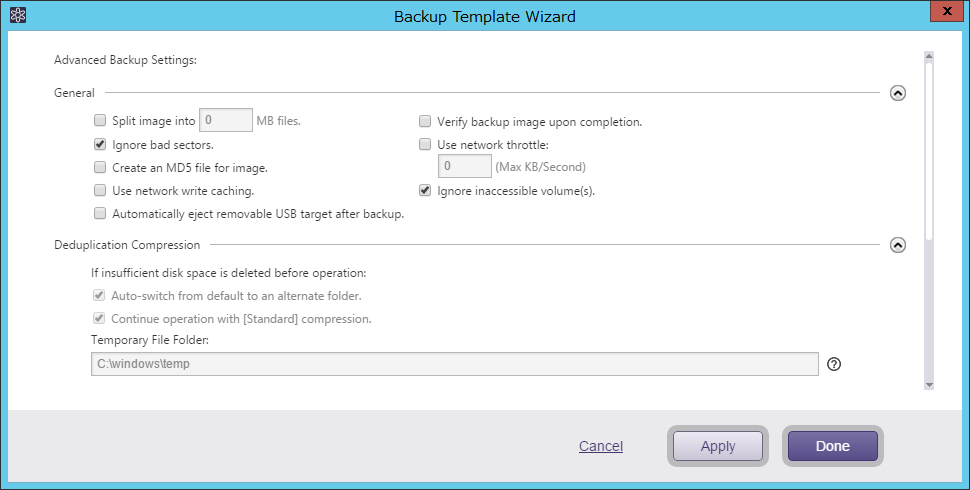
[Advanced Backup Options] offers a number of customized settings that can be configured into the backup task by checking the box at each of the options: streamlining the backup process, verifying the integrity of the backup image, generating an MD5 checksum file, and network throttling for the backup task traffic.
|
Item |
Description |
|
Split image into xx MB files |
The backup image is split into multiple files of specified size (MB). |
|
Ignore bad sectors |
By enabling this option, the backup task will continue uninterrupted if encountering unreadable sectors. |
|
Create an MD5 file for image |
Creates an MD5 check-sum for the image file. This can be used as a security measure to check if internal tampering of the image file has occurred. |
|
Use network write caching |
When storing image files in network shared folder, cached data are used. |
|
Make backup image file P2V ready |
Performs the same process as required for [Virtualizaion] by agent including installation of the driver required for virtualization (VMware ESXi/Microsoft Hyper-V), changing the registry settings, etc., during the backup process. If intending to use the created backup image for either of the following, please enable this option. · Directly connect the image mounted by using [iSCSI Target Server] on agent to a virtual machine and boot it up. · Instead of using [Virtualization] by agent, restore the backup image directly to a virtual machine. |
|
Use network throttle |
If the destination drive is on a network share, use network throttle to define the maximum throughput in KB/second to reduce backup traffic over the network. |
|
Ignore inaccessible volume(s) |
Enabling this function prevents backup task interruptions when an inaccessible volume is encountered. Ex. When you select the system volume and cluster shared volumes on Windows 2008 R2 for backup source, even if the cluster shared volumes are moved to a different node, the execution of the backup task completes without an error. * Desktop Edition does not provide this option. |
|
Item |
Description |
|
Operation Mode |
Select an option for VSS component mode for the VSS writer. When the VSS component mode is enabled, the data integrity check is performed before starting the backup process (only if supported.) [Auto] - VSS component mode is automatically enabled for the known VSS writer. [Component Mode] - VSS component mode is enabled for every VSS writer. [Non-component Mode] - VSS component mode is disabled for every VSS writer. |
|
Excluding Files |
Specify items to exclude from the backup. * If selecting the System Volume Information, the [Recovery Point] is excluded. |
|
Item |
Description |
|
Auto-switch from default to an alternate folder. |
The temporary folder used by deduplication will automatically switch over if insufficient disk space is detected. |
|
Continue operation with [Standard] Compression |
Will complete the backup task using the default Standard Compression. |
|
Temporary File Folder |
Specify the location for deduplication to process temporary files. The maximum size of the temporary folder will be 1% of the used space of backup source. The higher the deduplication level, the larger the temporary file size will be. |
|
Item |
Description |
|
Script to execute before the snapshot is taken |
Specify a script to run before the snapshot is taken. |
|
Script to execute after the snapshot is taken |
Specify a script to run after the snapshot is taken. |
|
Script to execute after successful image creation |
Specify a script to run after the backup image has been successfully created. |
|
Script to execute when image creation failed |
Specify a script to run when the backup image creation failed. |
|
Force script execution |
Checking this box ensures that all specified scripts will be executed even if an error occurs during the backup process. |
|
Backup Type |
Specify the backup type to run a script. |
3. Select Options.
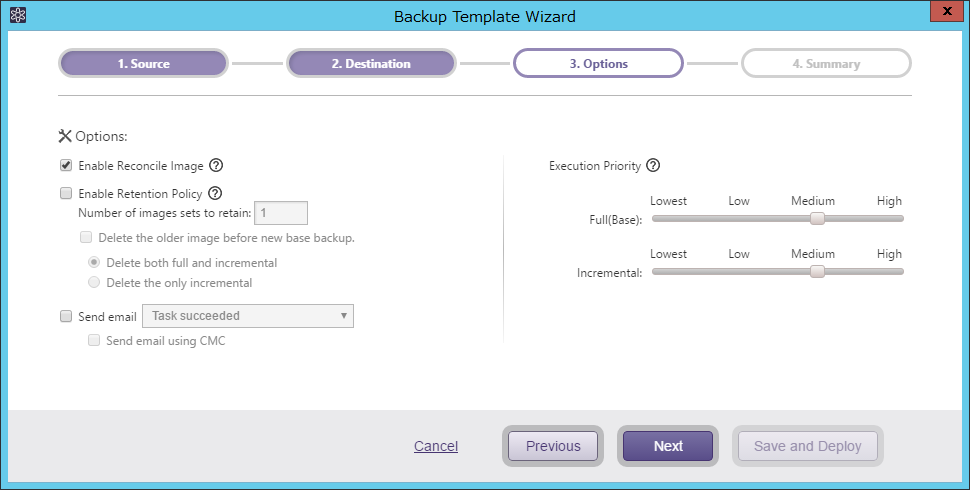
Configure the option settings for scheduled backup tasks.
|
Item |
Description |
|
Enable Reconcile Image |
Enabling this option provides a means to keep continuity in an incremental image set, should an incremental file become compromised, is deleted or corrupted. If this option is disabled and an incremental file in an image set is deleted or corrupted, the subsequent executed backup task creates a base backup file. |
|
Enable Retention Policy |
Check this box to enable a retention policy as to how many sets of incremental backup files to retain before deletion. · Delete both full and incremental - Select this radio button to delete both full and incremental files based on the retention policy settings. · Delete the only incremental - Selecting this option retains full backup and deletes only the incremental files based on the retention policy. |
|
Notifications |
Select this option to send email informing you of task completion with a specified status. Predefine the email notification settings by selecting [Preferences] - [Notifications]. Enabling the [Send email using ActiveVisor] option sends email from ActiveVisor. |
|
Execution Priority |
Select a level of task execution priority. |
4. Review the configured settings and options.
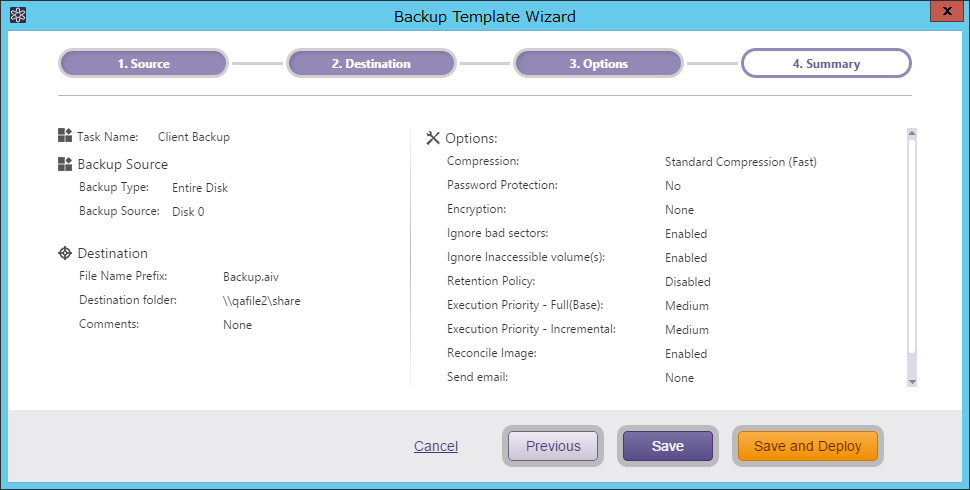
Click [Save] to save the configured settings in the template.
Click [Save and Deploy] to save and deploy the template to the clients.