
Schedule and configure ImageCenter's Consolidation of ActiveImage Protector full backup and incremental backup image files to a local or an off-site storage share.
1. Begin by selecting an image file from the Image View pane of the console.
2. Once the image with associated incremental files is selected, then from the Task List pane, click [Create Consolidation Task].
NOTE: Image files can now be selected from the initial screen of the [Create a Consolidation Profile] wizard.

3. The [Create a Consolidation Profile] screen is displayed. See below.
Image Info View

Source
Use the [Browse] button to select an image for creating a profile schedule.
Select Profile
Use the drop down menu to set the profile type.
Create New - Create a new profile and configure the consolidation settings.
Create from Template - Apply an existing profile template based on a previously configured consolidation task.
Profile Name - The default profile name includes the current date. The profile name can be edited if local policy requires a specific naming convention.

Click on the tabs for additional views of the backup image. View disk partition information.
Disk Map View

Or view disk by overall size, format and used space.
Disk List View

Verify that this is the backup image set that is to be configured for consolidation.
Click [Next]
Configure the Consolidation schedule.

Check the radio button for the desired Consolidation Schedule.
Consolidation of backup incremental image files can performed immediately, set to run after a specified number of incremental files have been created or scheduled to occur at a specified time of the day everyday or specific day(s) of the week.
Consolidation Settings: Check the boxes to configure the consolidation settings.
Use Smart Consolidation - Checking this box reduces storage demands by removing deleted file data blocks during consolidation.
Use an alternate consolidation agent - Checking this box enables use of the alternate consolidation agent from ActiveImage Protector or another ImageCenter installation.
Do not include previously consolidated image files in this schedule - Click the checkbox to exclude previously consolidated image files from the consolidation source files for the next scheduled consolidation task. This option is disabled if configuring for an [Immediate] schedule type.
Leave latest [x number] of incremental file(s) - Specify a number of days to retain the latest incremental files.
Keep original image files - Check this box to specify to keep original image files,
Until next consolidation: Retains original incremental files marked for consolidation until the next scheduled consolidation task.
Keep [x number] days: Set a specific number of days to retain original incremental files.
Click [Next]
Option to enable task notification or adjust execution priority.

Enable Sending Email - Check box to receive notification of consolidation task success, failure or both.
Execution Priority - Set ImageCenter's task execution priority. By determining the current workload on CPU, disk and memory resources, ImageCenter's task priority can be adjusted from the lowest setting to high. In a production environment, it is recommended to keep execution priority between Lowest and Medium.
Click [Next]
Summary
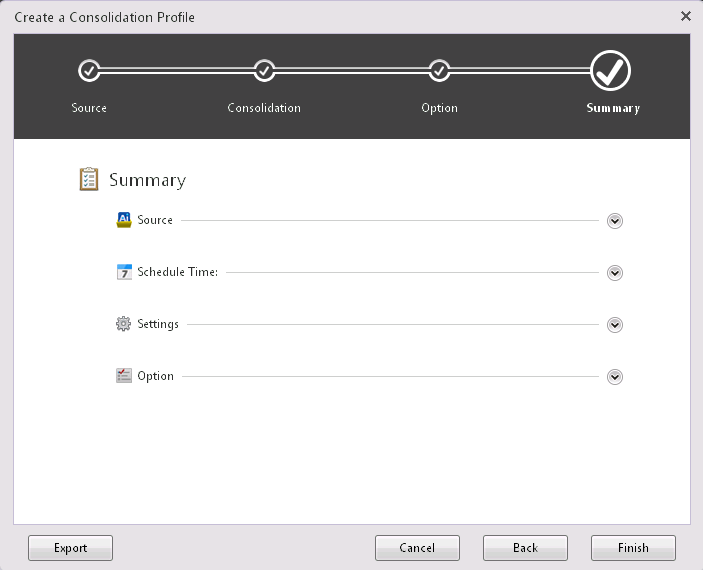
Click the down arrows at the end of each category to expand and view the details for that section.
Export - The configuration settings for the consolidation task can be exported as a template and can be applied to other consolidation tasks.
Back - Use the [Back] button to make any changes to the configured settings for the task.
Cancel - Cancel the configuration settings for the consolidation task.
Finish - Click [Finish] to complete and save the replication task configuration.
Click [Finish]