
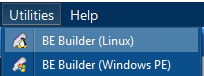
Start by selecting [BE Builder (Windows PE)] from the [Utilities] menu bar.
Microsoft Windows ADK or AIK is required to build the Windows PE based boot environments.
Deployment Tools and Windows Preinstallation Environment (Windows PE) are necessary to create boot environment.

Welcome to the Windows PE Boot Environment Builder.

Click on [Next].
Choose Windows PE kit
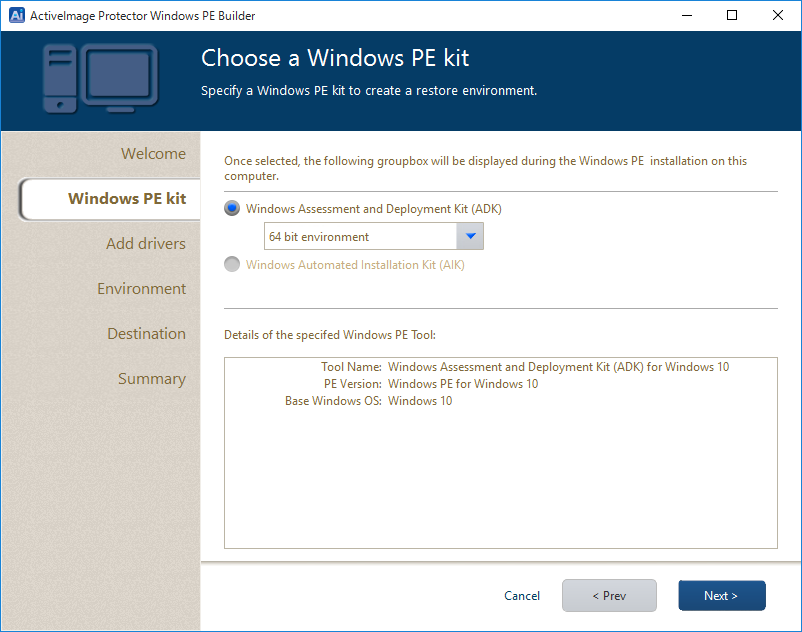
Specify the Windows PE toolkit needed for the installed operating system by clicking the appropriate radio button. 32-bit version of Windows PE boot environment can be used on 64-bit host.
The information of a specific Windows PE toolkit can be displayed.
Click on [Next].
Add Device Drivers
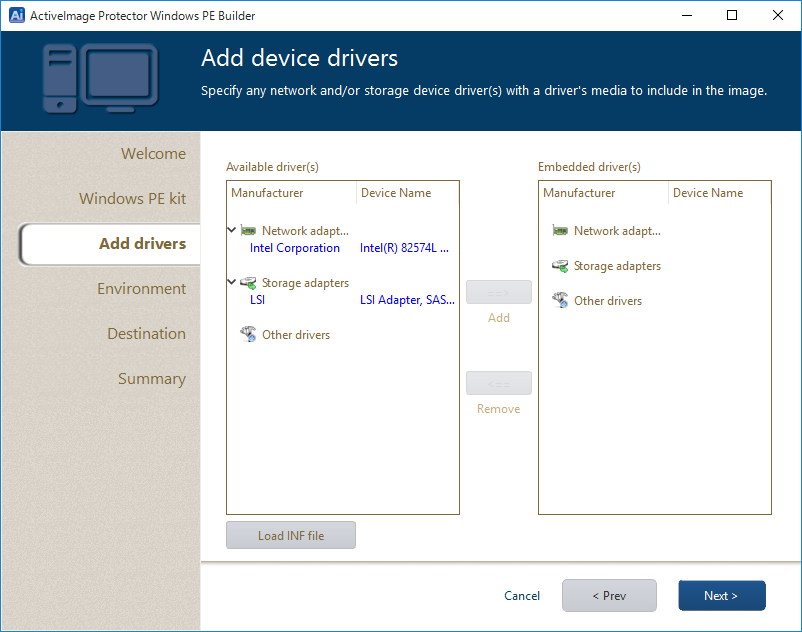
Specify device driver(s) to include in the boot environment.
Network and storage device drivers included in the current system are detected and listed on the left pane. Click on [Load INF file] to add a driver by selecting INF file if the driver does not exist in the list.
After selecting a driver to add, click on [==>] to include the driver in [Embedded driver(s)]. To exclude a driver from [Embedded driver(s)], select the driver and click on [<==]
.
Click on [Next].
Set Environment
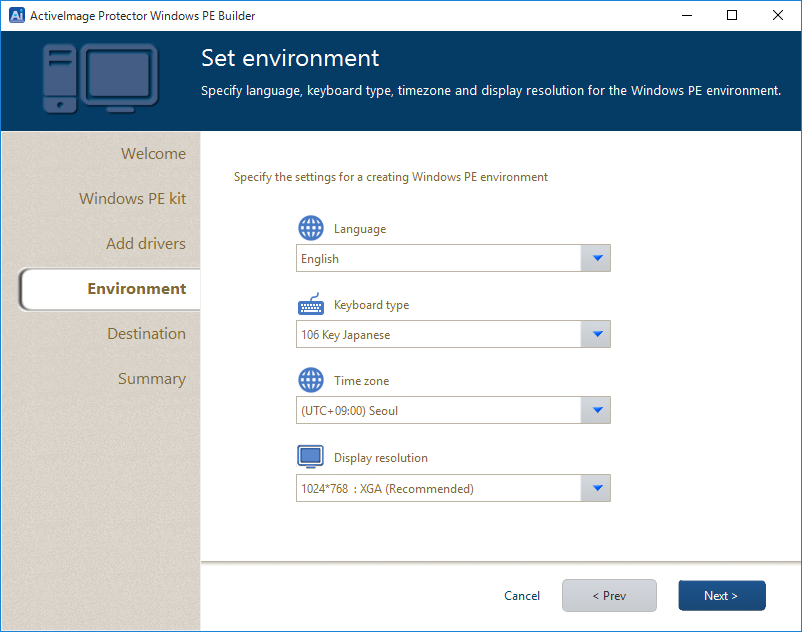
Specify the language, keyboard type, time zone and/or screen resolution for the Windows PE environment by selecting from the drop-down menu.
Click on [Next].
Specify Boot Environment
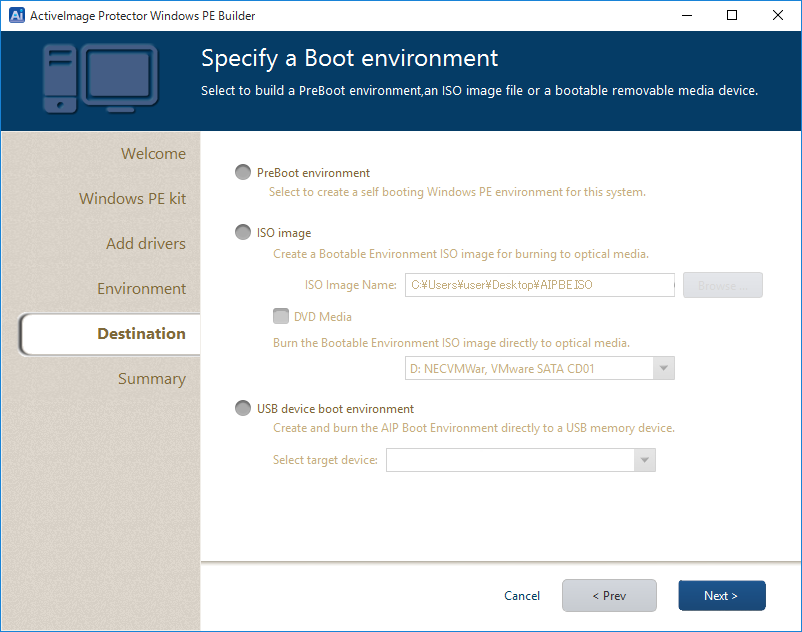
Select [PreBoot environment] to create the boot environment in the system volume to boot from hard disk.
Select [ISO Image] to create ISO image file in the specified location. The created ISO file may be burnt on DVD media.
Select [USB boot environment] to create boot environment bootable from USB memory. The USB media currently connected to the PC may be selected. Existing data in the selected USB media shall be entirely purged.

Click on [Next].
Summary
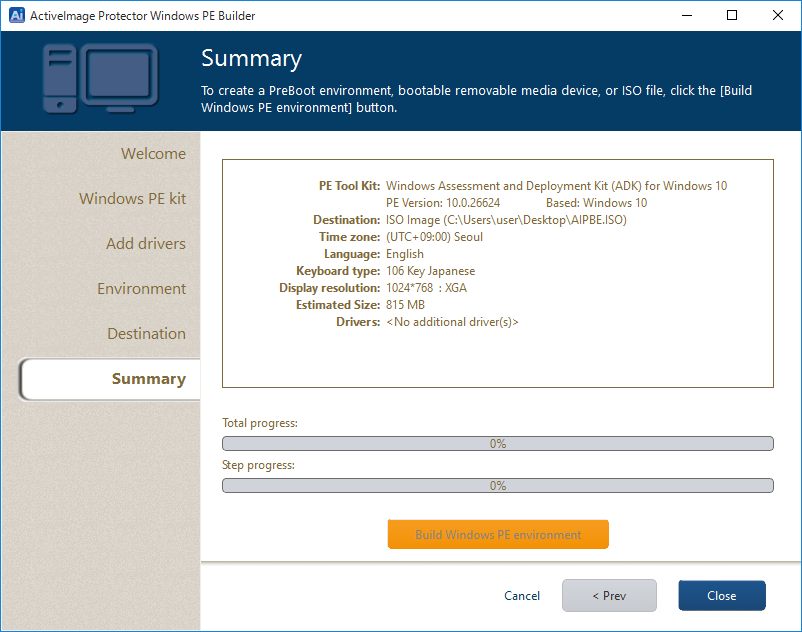
Please review the configured settings.
Click [< Prev] to make changes to previous settings. Click on a node to go back to a specific page.
Click on [Build Windows PE environment] to display the confirmation message. Click on [OK] to start building Windows PE environment.
Progress bars are shown in the window.
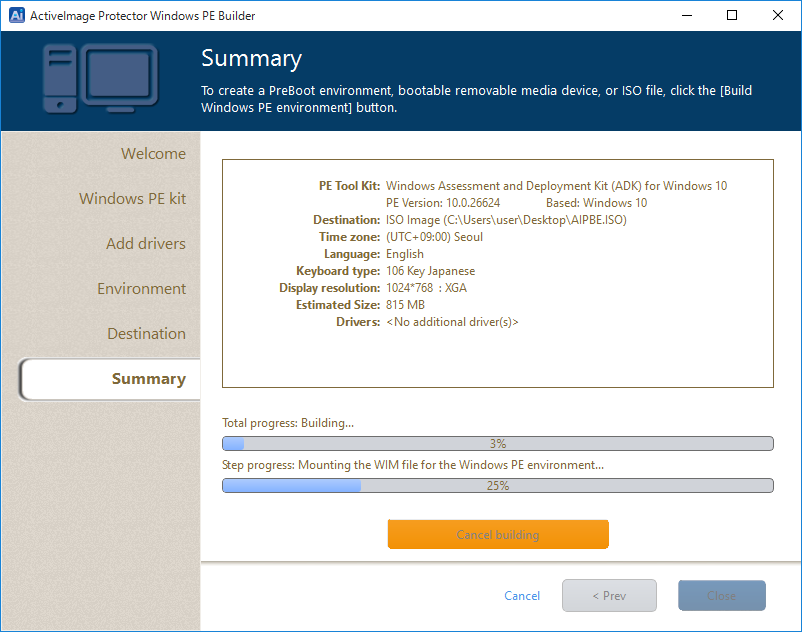
When boot environment creation completes, the following message is displayed.
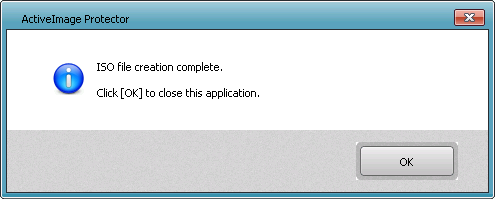
Click on [OK] to close the window.
When PreBoot environment creation is completed, please enable the [Boot Setting].
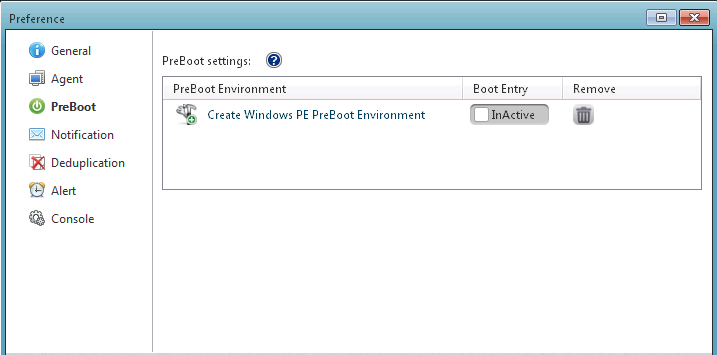
Click on the toggle button to toggle from [Disabled] to [Enabled].
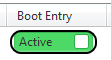
When Boot Setting is enabled, you can select NetJapan ActiveImage Protector Boot Environment (PE) to boot up from Windows Boot Manager.

Press Enter key to boot up.
To end the boot environment, go to [Operation] - [Close] - [Shutdown] or [Restart].