
Before ReZooming to a cluster
shared volume (CSV), please take the following preparatory procedures.
By skipping the following procedures before executing a ReZoom, the ReZoom'ed
virtual machine may not be correctly recognized.
Hyper-V in Windows Server 2012 or later
Hyper-V in Windows Server 2008R2
1. Shut down the virtual machine to restore.
2. Remove the virtual machine to restore in the Failover Cluster Manager.
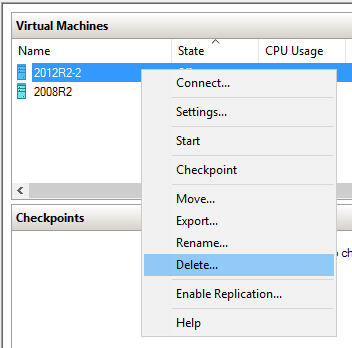
3. Delete the virtual machine to restore from the Hyper-V Manager.
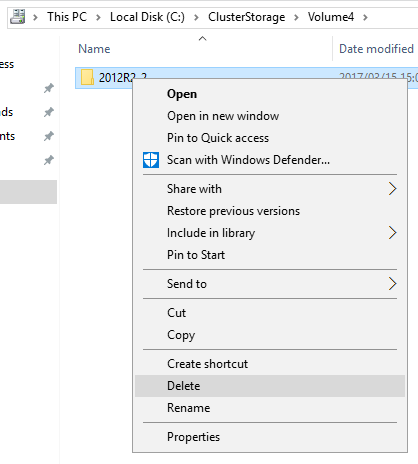
4. Delete the group of files related to the virtual machine to restore (configuration file, virtual hard disk file, snapshot file, etc.) from the CSV.
5. Please specify any folder in the CSV (C:\ClusterStorage\Volume*) as the destination to save the files and execute ReZoom in the program.
When the restore process completes and the ReZoom'ed virtual machines need to be configured for high availability, follow these procedures.
1. Upon completion of ReZoom processing, the restored virtual machine is registered in the Hyper-V Manager.
Go to [Hyper-V Settings] - [Virtual Machine] and if the default location to save virtual machine's configuration file is specified to be the local storage on the cluster node, the restored virtual machine's configuration file is created in the location. In this case, the virtual machine cannot be configured for high availability, please move the restored virtual machine's configuration file to the CSV by using the Hyper-V Manager.
1. Select the restored virtual machine and launch the [Move] wizard from the context menu.
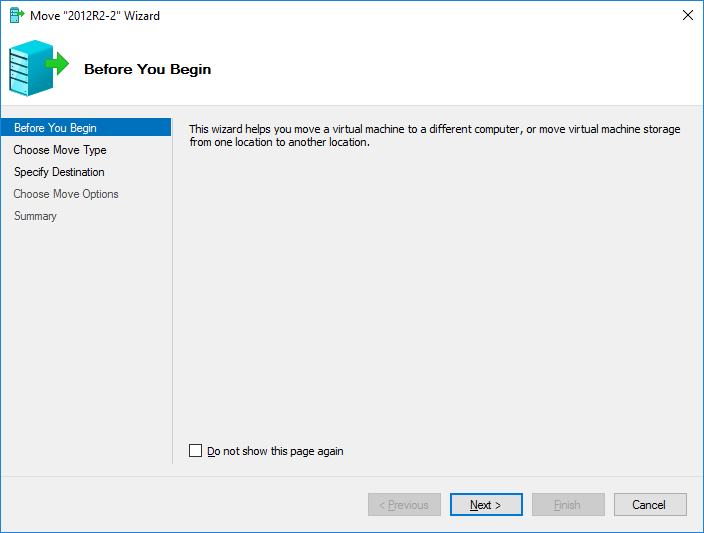
2. Select [Move the virtual machine's storage]in [Choose Move Type].

3. Select [Move the virtual machine’s data to different locations] option.
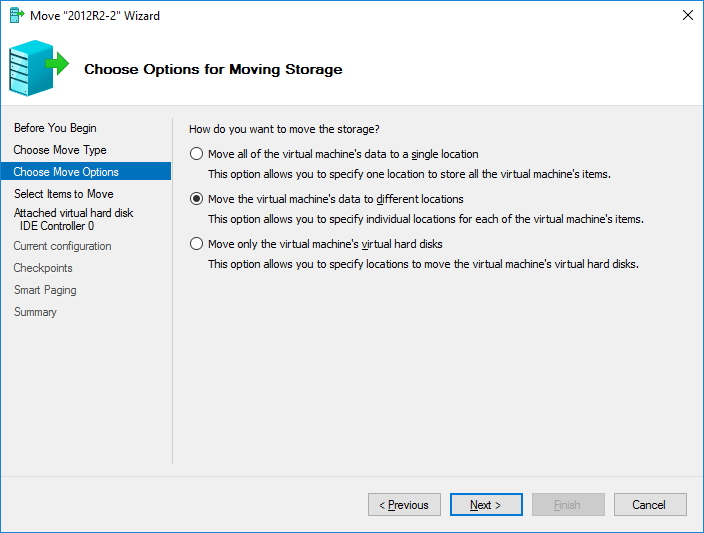
4. Check all items except for the virtual hard disk.
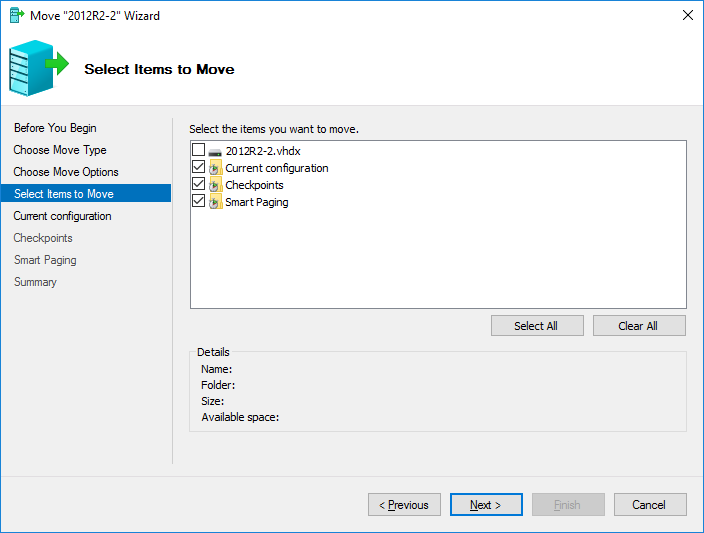
5. Specify a destination in [New Location] for each and every item of the ReZoom'ed virtual machine and click [Finish].
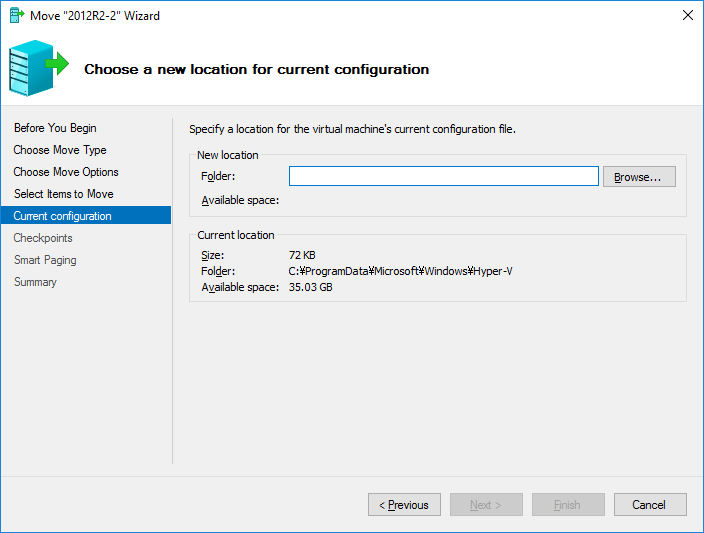
Confirm that each item is moved to the specified destination.
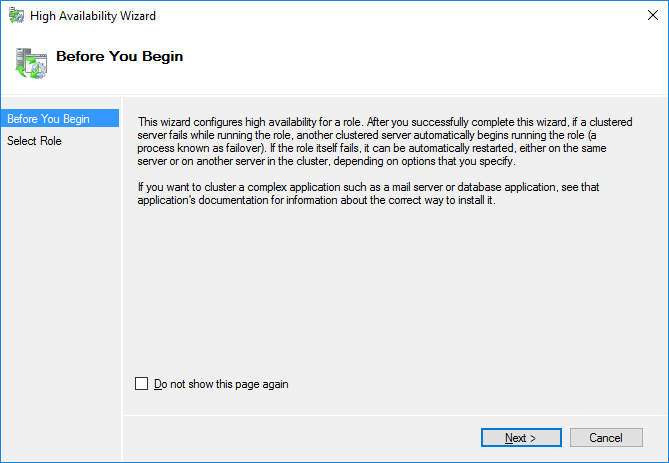
2. Start the Failover Cluster Manager, select [Roles] node in the left pane and click [Configure Role] in the right pane. [High Availability Wizard] is launched.
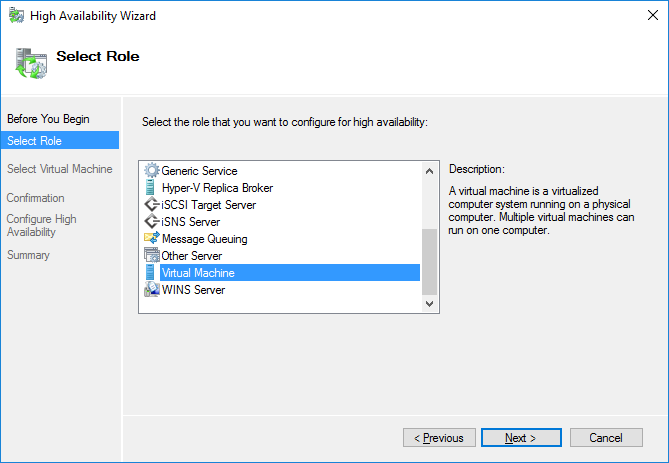
3. Select [Virtual Machine] in [Select Role] in [High Availability Wizard] and click [Next].
4. The virtual machines that are registered to the Hyper-V Manager but not configured for high availability are listed. Select the restored virtual machine to add to the CSV and click [Next] to apply the operations.
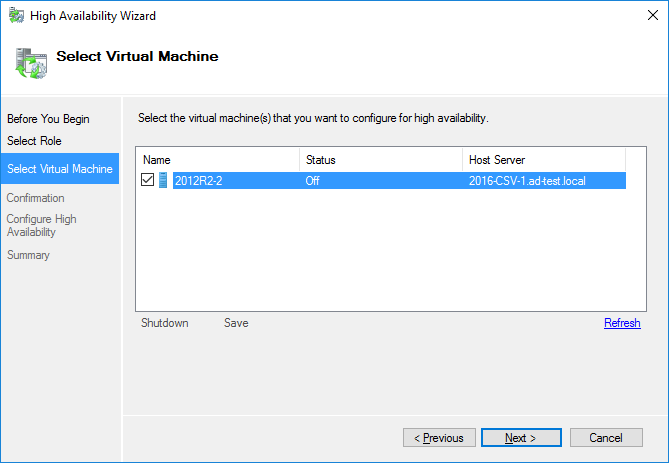
5. After applying the above operations, please ensure that the operations such as moving the virtual machines are applicable on Failover Cluster Manager
1. Shut down the virtual machine to restore.
2. Delete the virtual machine to restore in Failover Cluster Manager.
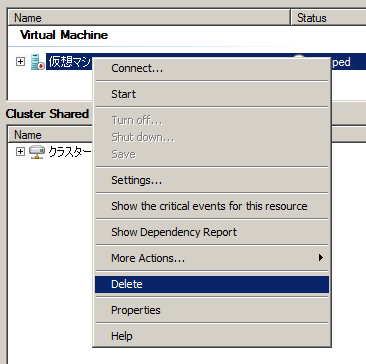
3. Delete the virtual machine to restore from Hyper-V Manager.
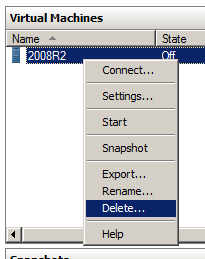
4. Delete the group of files related to the virtual machine to restore (configuration file, virtual hard disk file, snapshot file, etc.) from the CSV.
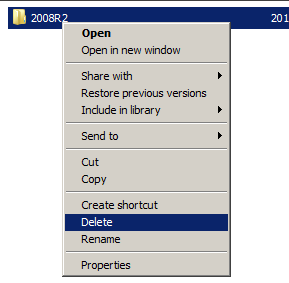
5. Please temporarily change the default location of the folder to save the virtual machine's configuration file on cluster node to run Rezoom in the Hyper-V Manager.
Please specify the changed location of the folder as follows:
C:\ClusterStorage\Volume*\<Name of the virtual machine to restore>
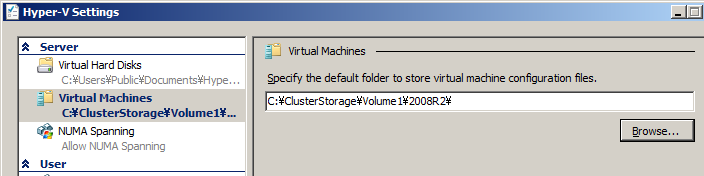
6. Please specify the folder created on the CSV with the above step 5 and run ReZoom in this product.
Upon completion of restore processing, if you need to configure the ReZoom'ed virtual machines for high availability, please take the following operating procedures.
You also need to change the destination folder specified in the above step 5 back to the default location.
1. Upon completion of ReZoom processing, the restored virtual machine is registered in the Hyper-V Manager.
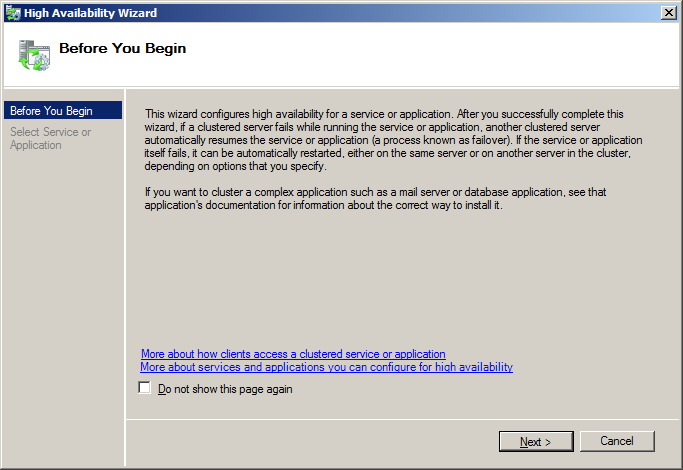
2. Launch the Failover Cluster Manager and select [Service and Application] node in the left pane and click [Configure a Service or Application...] in the right pane. The High Availability Wizard is launched.
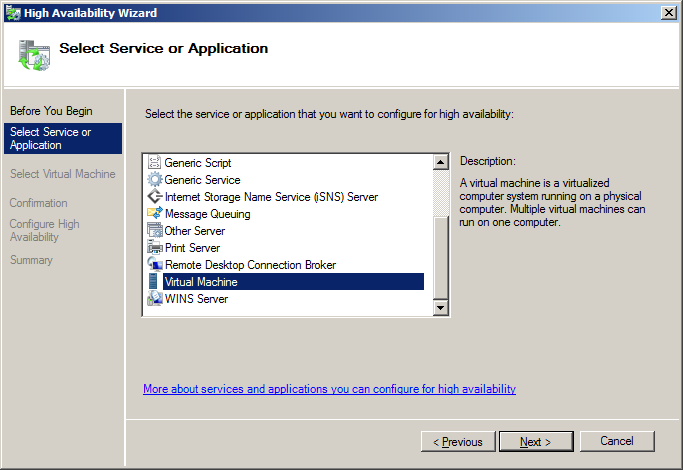
3. Select [Virtual Machine] in [Select Service or Application] in High Availability Wizard. Click [Next].
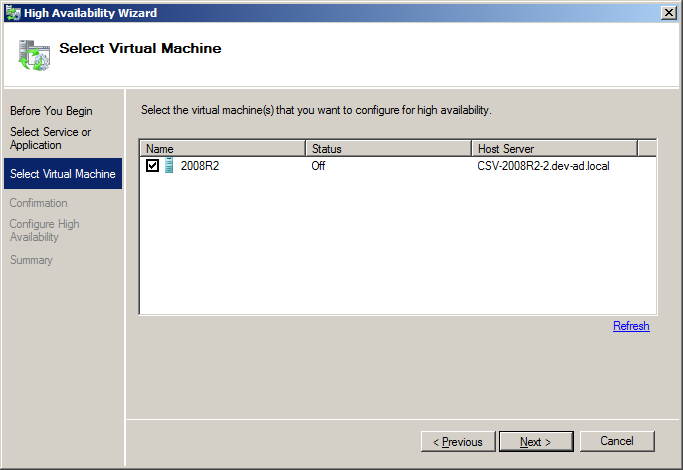
4. The virtual machines that are registered to Hyper-V Manager but not configured for high availability are listed. Select the restored virtual machine to add to CSV and click [Next] to apply the operations.
* Before configuring the virtual machine for high availability, please ensure that the virtual machine is shut down or saved.
5. After applying the above operations, please ensure that the operations such as moving the virtual machines are applicable on the Failover Cluster Manager