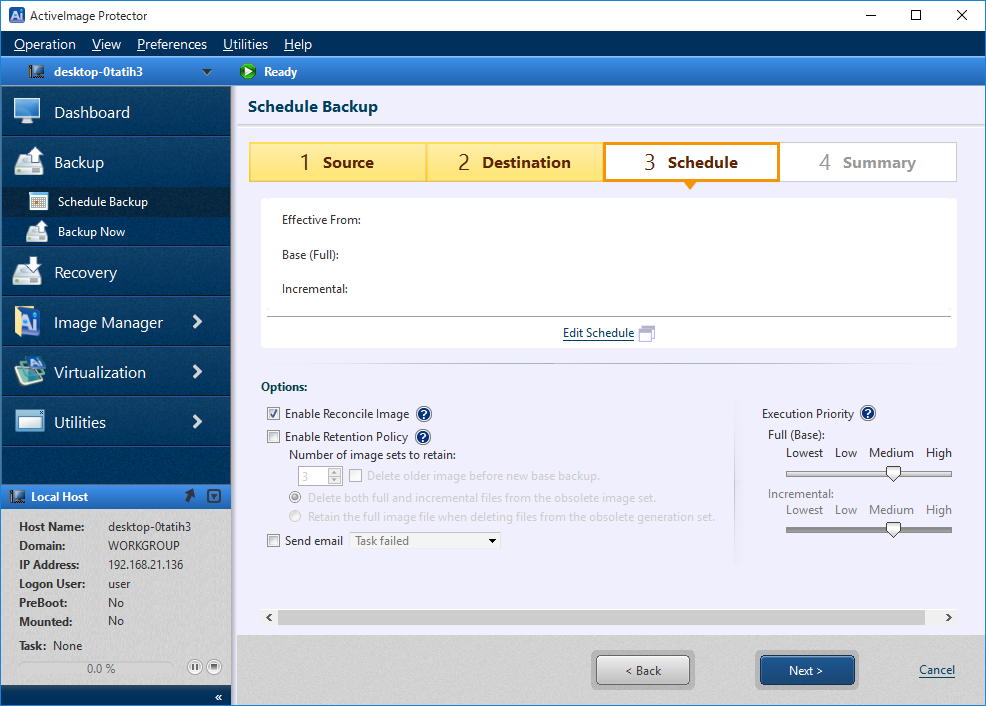
Configure Backup Schedule
Configure the settings for a backup schedule by clicking on [Edit Schedule] located at the middle of the window.
Schedule Settings
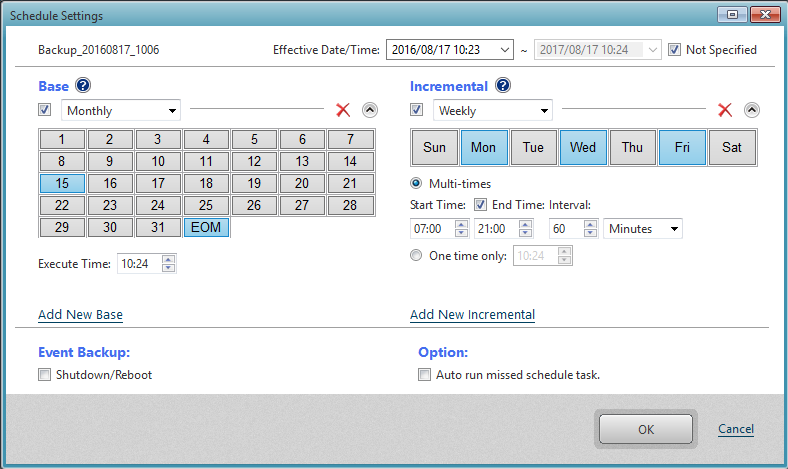
Begin by specifying Effective Date/Time that the scheduled task becomes live.
Not specifying a date defaults 10 minutes from the time of beginning the configuration. [Not Specified] option may be checked so that the schedule task is live for unlimited period.

Check the box and use the drop down menu to select the schedule type for the recurring full base or incremental backup.
Options include Weekly, Monthly or Specified Date. Uncheck the box to disable the schedule instead of deleting. To create a task you need to have at least one schedule enabled.
 |
 |
Unnecessary triggers can be deleted by clicking on  .
.
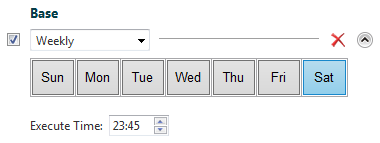
Weekly: Select by clicking the day(s) of the week and the time of day.
The following options may be selected for incremental backup tasks:
Recurring backups at the specified interval - Please specify the time slot of the day and interval to run recurring backup tasks.
One Time Only - Specify the execution time.
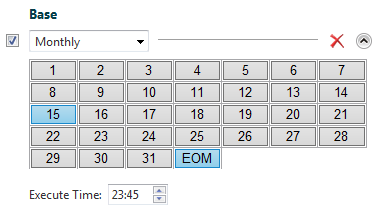
Monthly: Select by clicking the date(s) of the month and the time of day to perform a recurring full base backup.
The following options may be selected for incremental backup tasks:
Recurring backups at the specified interval - Please specify the time slot of the day and interval to run recurring backup tasks.
One Time Only - Specify the execution time.
Specified Date: Use the drop down menu to specify a date/time to perform a single full base backup.
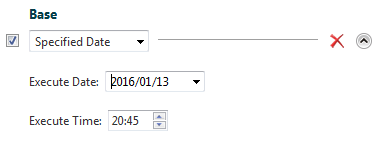
Add New Base or Add New Incremental: Click either link to create an additional schedule to run concurrently with the original schedule.

By enabling [Run at System Shutdown/Restart] option enabled for event-triggered backup, the backup task is started upon system shutdown or restart.
* Home edition or its equivalent does not provide the features for monitoring the progress or canceling running backup tasks.
* If Quick Start-up is enabled in the system environment, [Run at System Shutdown] does not work.
* for Hyper-V Enterprise Edition does not provide this feature.
With [Auto run missed schedule task] enabled, skipped task at system shutdown, if any, is automatically executed when the system is rebooted.
*Note, task skipped during events such as system maintenance or Windows updates will also be run when enabling this option. If you do not want to run tasks during these times we recommend disabling this option.
Click [OK]
Review Schedule settings and, if necessary, click [Edit Schedule] if changes are required.
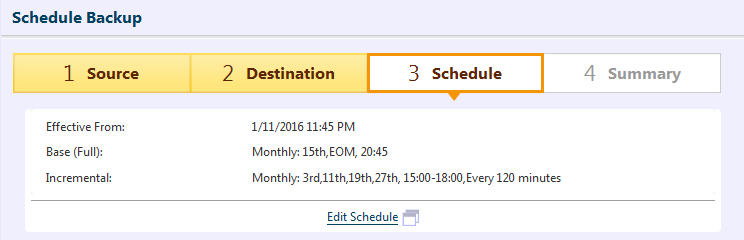
Configure Options
Configurable options include reconciliation, a retention policy, deletion of pre-reconciliation incremental image files and notifications.
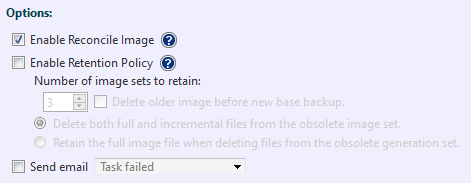
Enable Reconcile Image Option - Enabling this option provides a means to keep continuity in an incremental image set should an incremental file become compromised, is deleted or corrupted. If this option is disabled and an incremental file in an image set is deleted or corrupted, the subsequently executed backup task creates a base back file.
Enable Retention Policy - Check this box to enable a retention policy as to how many sets of incremental backup files to retain before deletion.
Delete older image before new base backup - Select this radio button to delete the most obsolete generation before creating a new image set.
Delete both full and incremental..... - Select this radio button to delete both full and incremental files based on the retention policy settings
Retain the full image file when..... - Selecting this option deletes only the incremental files based on the retention policy.
Sending Mail - Check this box to send E-Mail informing you of a task completed with a specified status. Predefine the E-Mail notification settings by selecting [Preferences] - [Notification] from the menu bar.
Select a level of task Execution Priority. Task execution priority level may be selected for both full and incremental backups respectively.
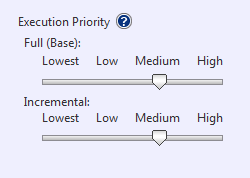
Use the slider to adjust the desired execution priority.
Click [Next].